KVMFlow docs
Setup guide
Set it up once, then switch with one button.
1. Connect devices
- Connect the keyboard and mouse to the USB switch.
- Connect the switch’s two upstream ports to the two computers.
- Connect each monitor’s video inputs to both computers.
- Enable DDC/CI in the monitor menu and confirm that you can manually display a picture from either computer.
2. Run the app on both computers
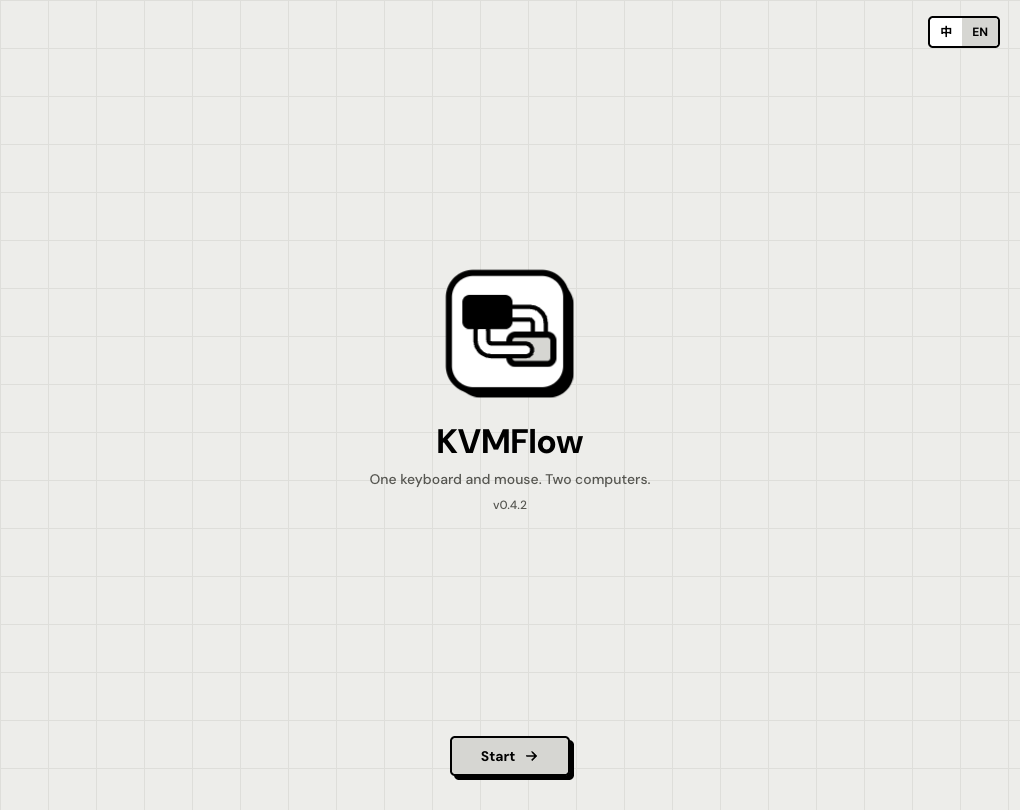
Install and open KVMFlow on both computers. Start from the welcome page, choose an appearance and check the current computer. Switch the USB devices and monitor picture to the computer you are configuring.
3. Check this computer
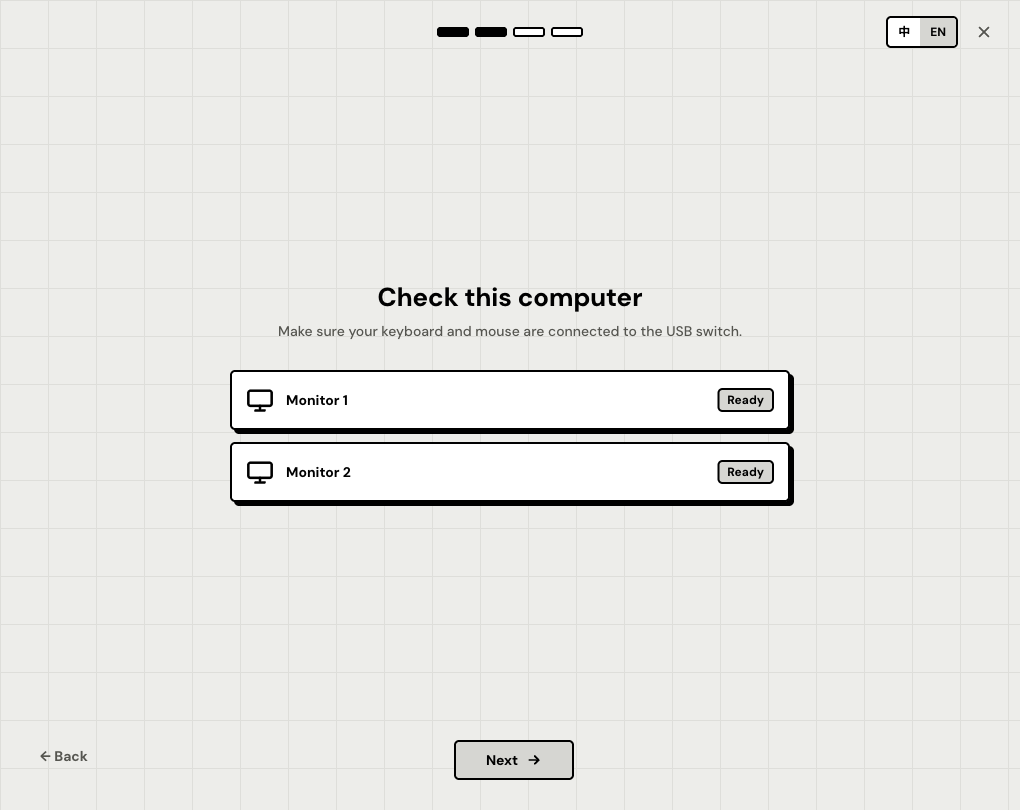
Connect the keyboard and mouse to the USB switch. Setup reads the local monitor inputs. Choose Next once the monitors are marked Ready.
If reading fails, confirm that the monitor is showing this computer and DDC/CI is enabled. You can also skip a monitor and configure it later in Settings.
4. Connect the other computer
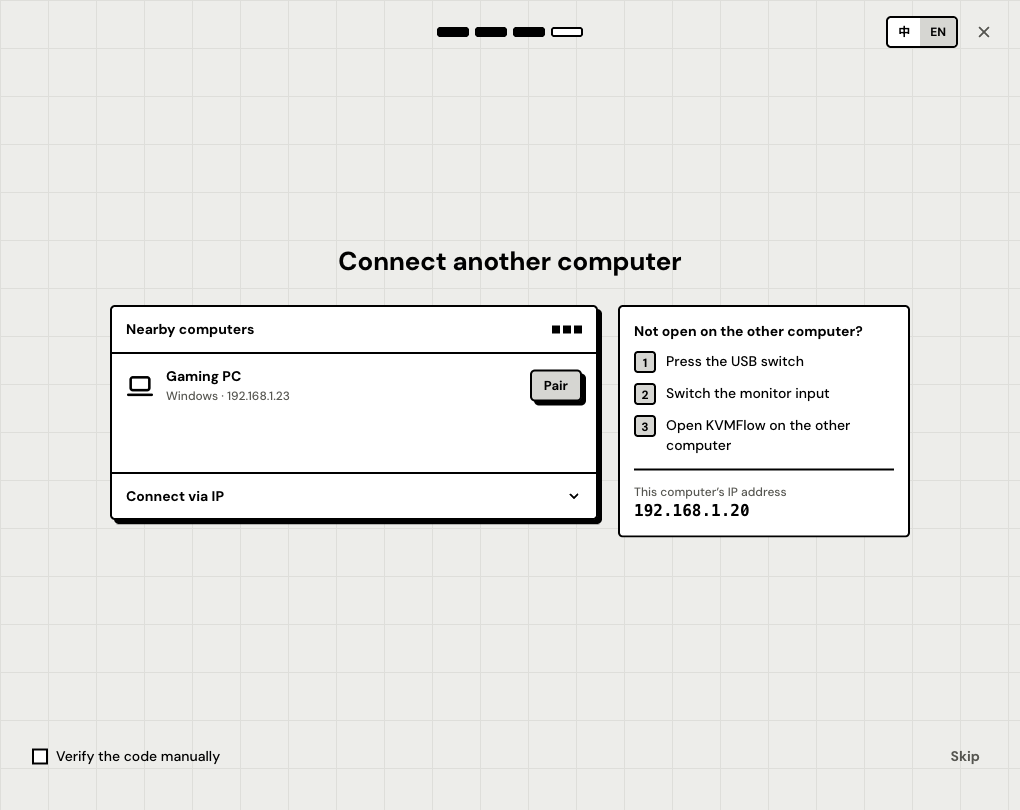
You can skip pairing for now. The app shows Not paired; continue later from Add a computer. A computer receiving a pairing request can accept or decline it.
- Follow the prompts to switch the USB devices and monitor picture to the other computer, then complete its local check.
- Select the other computer from the nearby list to pair. If it is not listed, enter the local IP shown on its page.
- Pairing completes automatically by default. To compare the digits yourself, enable the manual comparison option and confirm the matching digits on both computers.
5. Test switching
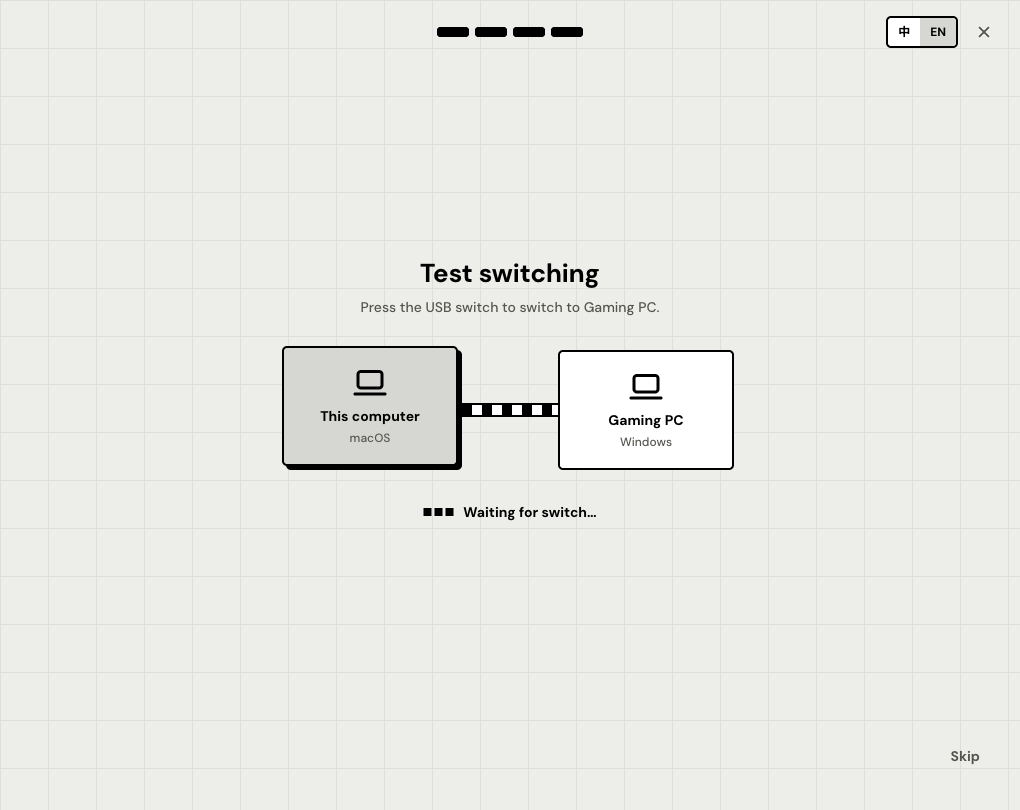
After pairing, follow the prompts to press the USB switch. Check that the keyboard, mouse and every monitor move to the other computer. Setup finishes when the check completes.
If a monitor does not switch, check its input and DDC/CI settings before retrying. You can still edit computer names, ports and inputs under Computers and monitors in Settings.
6. Switch during everyday use
Keep KVMFlow running on both computers and press the USB switch’s physical button. Enable launch at login in Settings if needed. Reopen a closed window from the menu bar or system tray.
During your first check, test both switching directions and the actual picture on every monitor. If a direction leaves a screen black, follow Troubleshooting.